
The 90-Second Work Update: A Better Alternative to Status Meetings
Discover how 90-second screen recordings can replace unnecessary status meetings. With Glooin, teams can quickly share progress, explain tasks, show blockers, and communicate updates without scheduling another call. Learn how short, visual updates can make remote and async teamwork simpler, faster, and more productive.
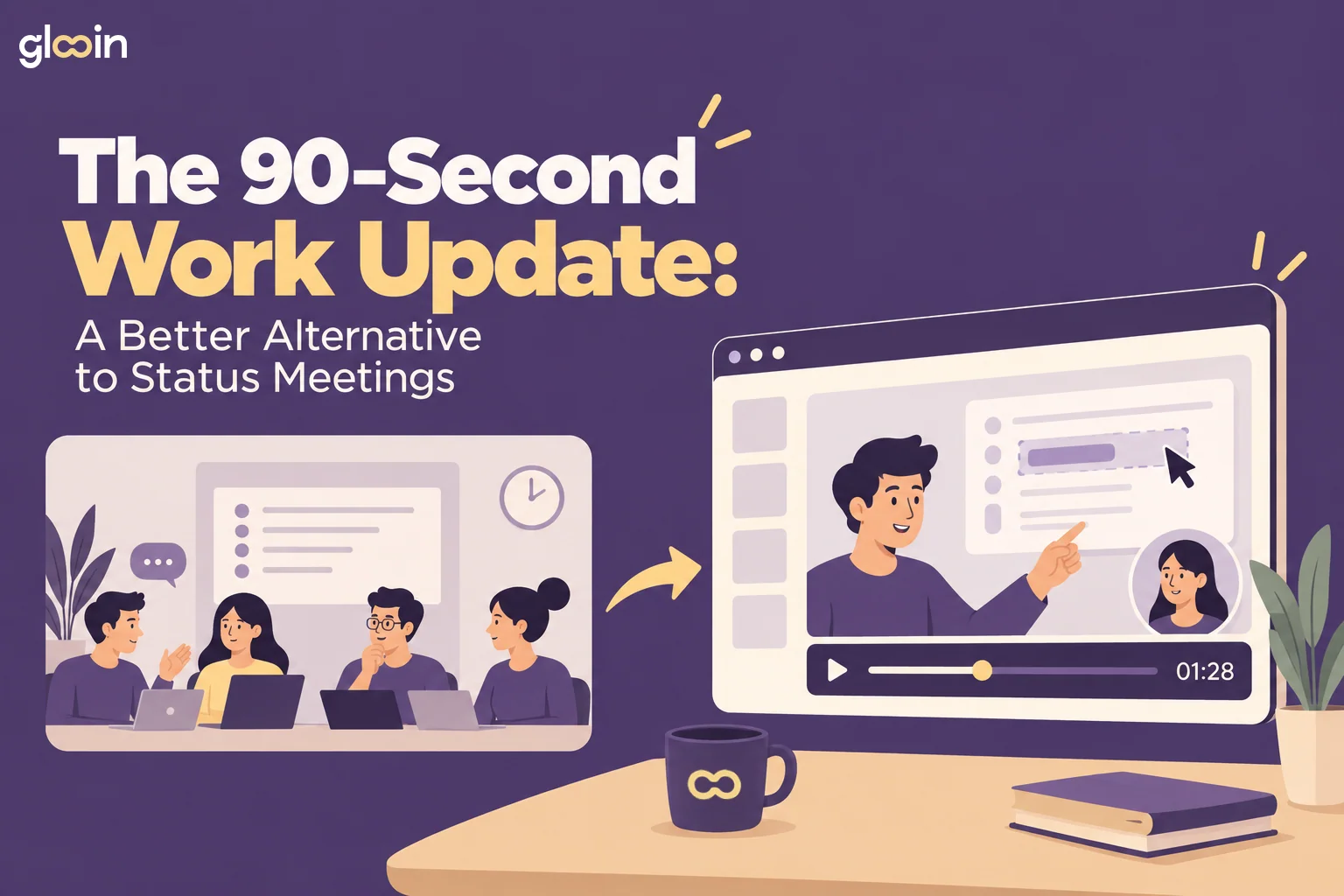
Table of contents
Status meetings are supposed to be quick. But a simple “What are you working on?” can easily turn into a 30-minute conversation.
Someone asks a question. Another person needs clarification. A small update becomes a discussion, and suddenly the whole team has spent valuable time talking about work instead of doing it.
There is another way.
For simple progress updates, a 90-second screen recording can often communicate more clearly without requiring everyone to be available at the same time.
With Glooin, you can record your screen, explain what you are working on, and share the recording with your team in just a few clicks.
Why Status Meetings Can Become Time-Consuming
Not every work update needs a live conversation.
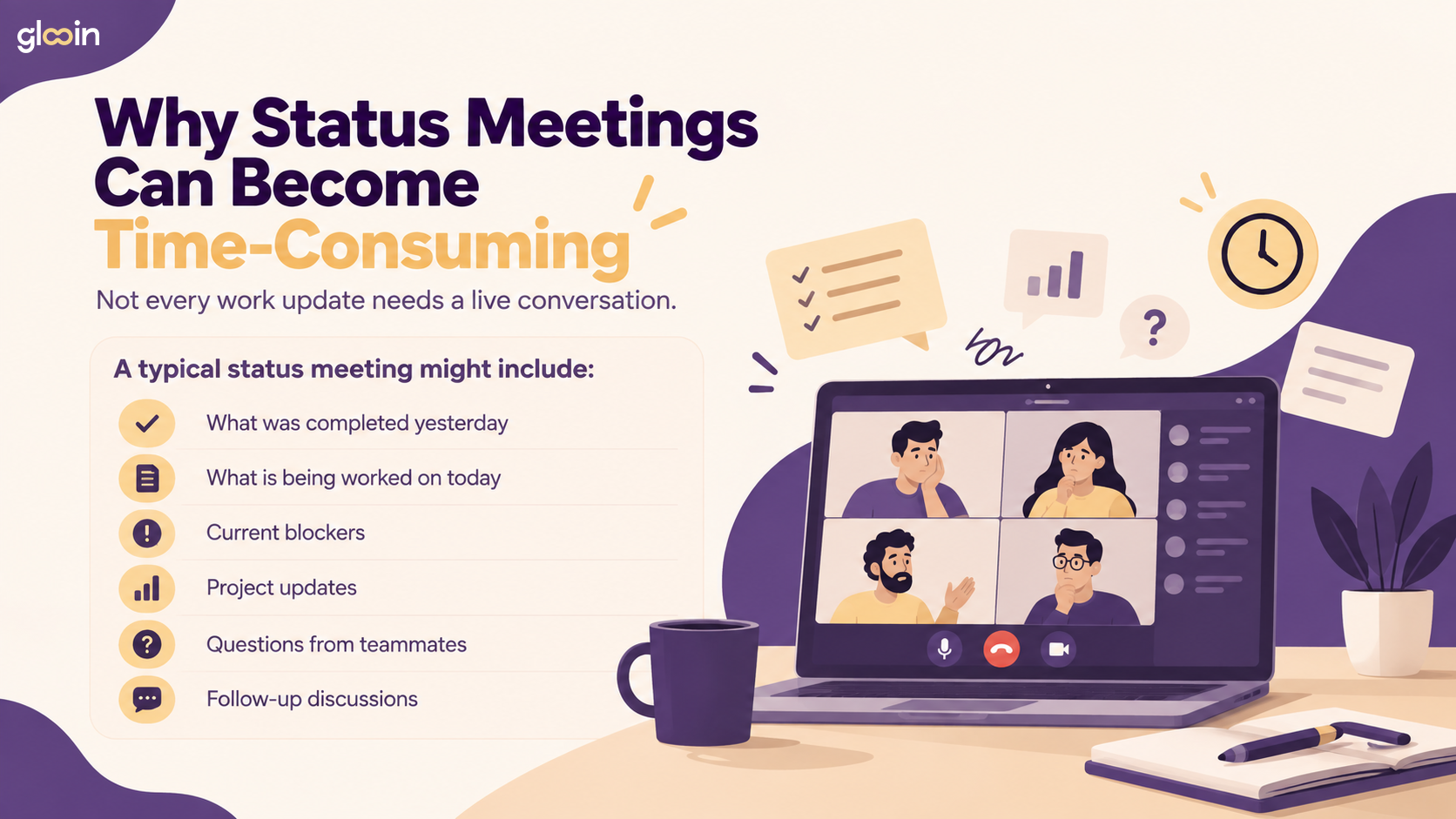
The problem is that most of this information can often be communicated without bringing the entire team into a meeting.
For example, instead of spending 15–30 minutes explaining a new design, a designer can record the screen and say:
“Here is the updated homepage. I changed the navigation, adjusted the layout, and added the new CTA. The main thing I need feedback on is the mobile version.”
That explanation could take less than 90 seconds.
What Is a 90-Second Work Update?
A 90-second work update is a short video that gives your teammates a quick overview of your progress.
Think of it as a visual version of a traditional status update.
Instead of writing:
“I've finished the homepage design. I'm working on the mobile version now. There's still an issue with the navigation, and I need feedback on the CTA.”
You can open Glooin, record your screen, and show exactly what you're talking about.
You might say:
“Here's the updated homepage. I changed the navigation, finished the desktop version, and I'm now working on mobile. The main thing I need feedback on is this CTA placement. I'm also seeing an issue with the menu on smaller screens.”
In around 60–90 seconds, your team has the complete context.
No long message.
No calendar invitation.
No waiting for everyone to join.
Just a clear update.
Why Status Meetings Take More Time Than Expected
The biggest problem with status meetings isn't always the meeting itself.
It's everything around it.
Before the meeting, people have to:
Find a suitable time
Check calendars
Join the call
Wait for everyone to arrive
Find the right document or screen
Explain what they worked on
Ask questions
Discuss unrelated issues
Schedule follow-ups
A meeting that was supposed to take 15 minutes can easily become 30 or 45 minutes.
And when a team has multiple projects, these meetings can happen several times a week.
The issue becomes even bigger with remote teams.
People may be working in different time zones. Someone might be focused on another task. Another teammate might only need one small piece of information from the meeting.
Yet everyone has to attend.
A short screen recording changes that.
The Difference Between Information and Discussion
One of the easiest ways to decide whether you need a meeting is to ask:
“Do we need to discuss this, or do people simply need to know this?”
If the team needs to discuss something, a meeting can make sense.
If the team simply needs an update, a recording may be enough.
For example:
Information
“I finished the landing page.”
A recording works.
Information
“Here's the bug I'm seeing.”
A recording works.
Information
“Here's the latest version of the product demo.”
A recording works.
Discussion
“Which pricing strategy should we use?”
A meeting may be more useful.
Discussion
“Which design should we launch?”
A meeting or collaborative review may make more sense.
The goal isn't to replace meetings completely.
It's to stop using meetings for things that don't require real-time conversation.
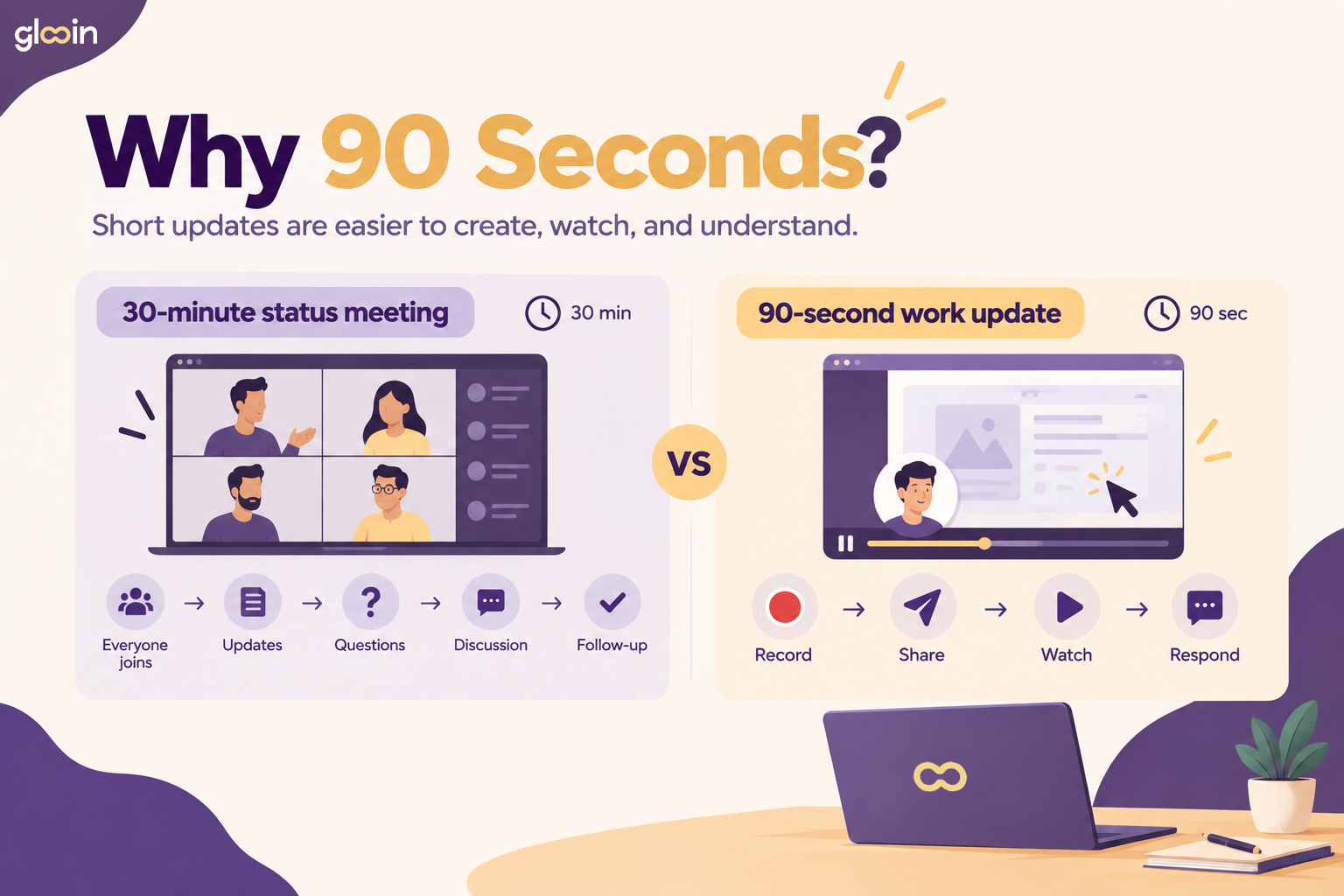
Why 90 Seconds?
Why 90 seconds?
Because short updates are easier to create, watch, and understand.
A 90-second video is long enough to explain a meaningful update but short enough that someone can watch it between other tasks.
Compare:
30-minute status meeting
Everyone joins → Updates → Questions → Discussion → Follow-up
with:
90-second work update
Record → Share → Watch → Respond
The second approach doesn't work for every situation, but for routine updates, it can remove a lot of unnecessary scheduling.
And because you're recording your screen, you're not just telling people what happened.
You're showing them.
Show Instead of Explaining
This is one of the biggest advantages of screen recording.
Some things are difficult to explain through text.
Imagine a developer wants to report a bug.
They could write:
“When I open the dashboard, click the settings menu, select notifications, and then change the preference, the page stops responding.”
That's understandable.
But a 30-second screen recording can show the entire process.
The viewer can see:
The page
The action
The problem
The error
What was expected
There is much less room for confusion.
This makes screen recordings particularly useful for:
Bug reports
Product demos
Design feedback
Customer support
Software walkthroughs
Employee onboarding
Tutorials
Project updates
Team handovers
You can read more about these use cases in Glooin's guide: From Bug Reports to Product Demos: 10 Ways Teams Can Use Screen Recording at Work.
How Glooin Works for Daily Updates
Glooin is designed around a simple workflow.
Record your screen. Explain what you're showing. Share the recording.
You don't need to create a presentation or prepare a long report.
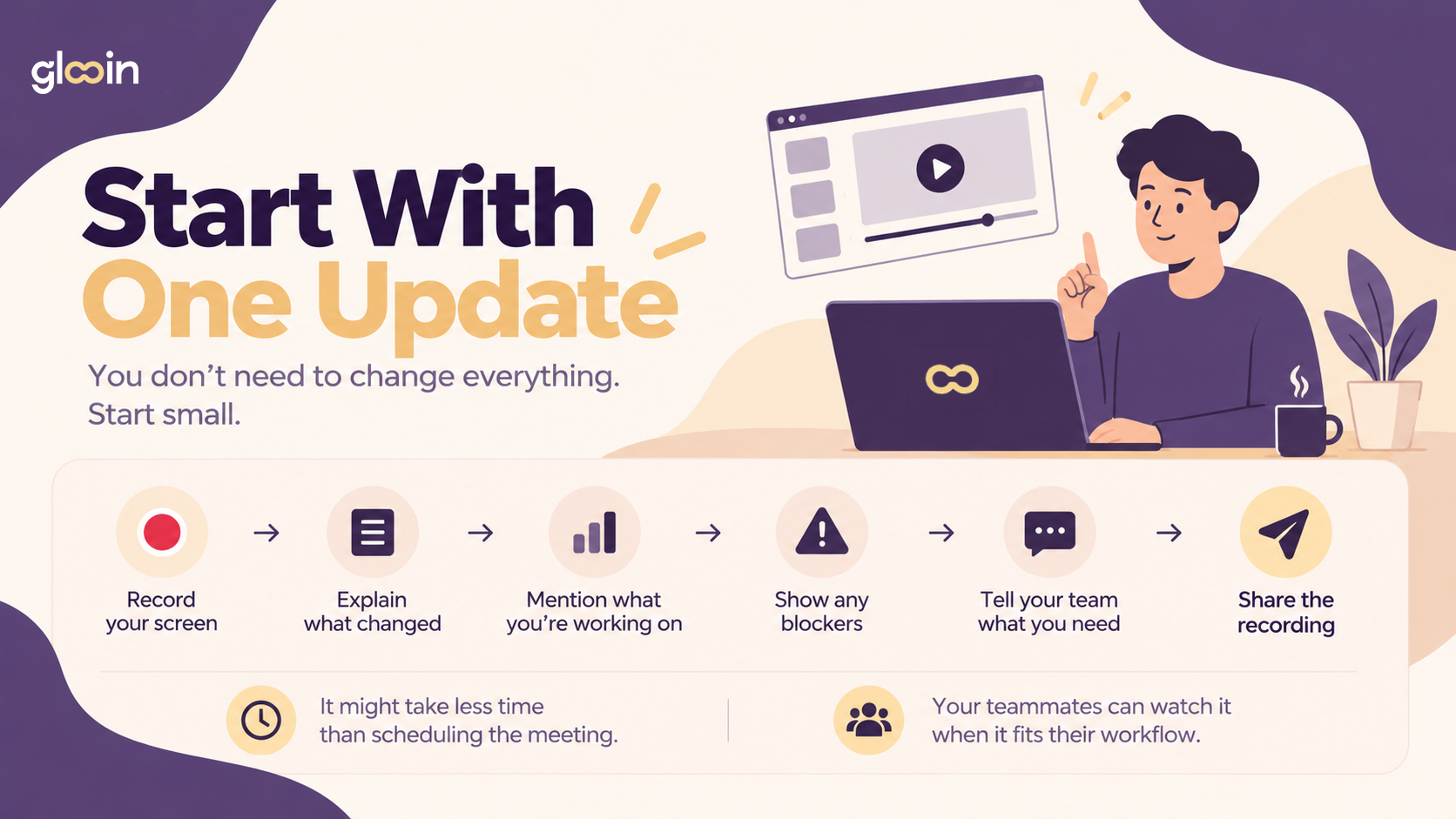
For a typical work update, you can:
Step 1: Open Glooin
Start your screen recording directly from your browser.
Step 2: Show Your Work
Open the project, website, design, dashboard, document, or application you're working on.
Step 3: Explain
Talk through what you've completed and what you're currently doing.
Step 4: Mention Blockers
If something is stopping your progress, show it directly on screen.
Step 5: Share
Send the recording to your teammates so they can watch it when convenient.
That's the entire workflow.
The idea is simple:
Less scheduling. More showing.
A 90-Second Update Template Your Team Can Use
If your team doesn't know what to say in short recordings, use a simple structure.
1. What I Completed
Start with what you finished.
For example:
“Yesterday, I completed the new checkout page and connected the updated payment buttons.”
Keep it short.
2. What I'm Working On
Show your current work.
“Today, I'm testing the checkout process on mobile and fixing the layout issues.”
Now everyone knows where the project stands.
3. What's Blocking Me?
If there is a problem, show it.
“I'm currently getting this error when testing the payment flow.”
Showing the error is usually more useful than describing it.
4. What Do I Need?
End with a clear request.
“I need the backend team to confirm whether this API response is expected.”
Now your teammate knows exactly what action is needed.
A complete update can take less than 90 seconds.
90-Second Updates for Designers
Designers often spend a lot of time explaining visual changes.
Instead of writing a long message about every design adjustment, record the screen.
For example:
“Here's the latest version of the homepage. I changed the hero section, simplified the navigation, and adjusted the spacing between these sections. The main thing I'd like feedback on is the CTA.”
Your team can see the actual design while you're explaining it.
This can make feedback more specific.
Instead of:
“I don't like this section.”
Someone can say:
“At 0:42, the CTA feels too close to the headline.”
The visual context makes the conversation easier to follow.
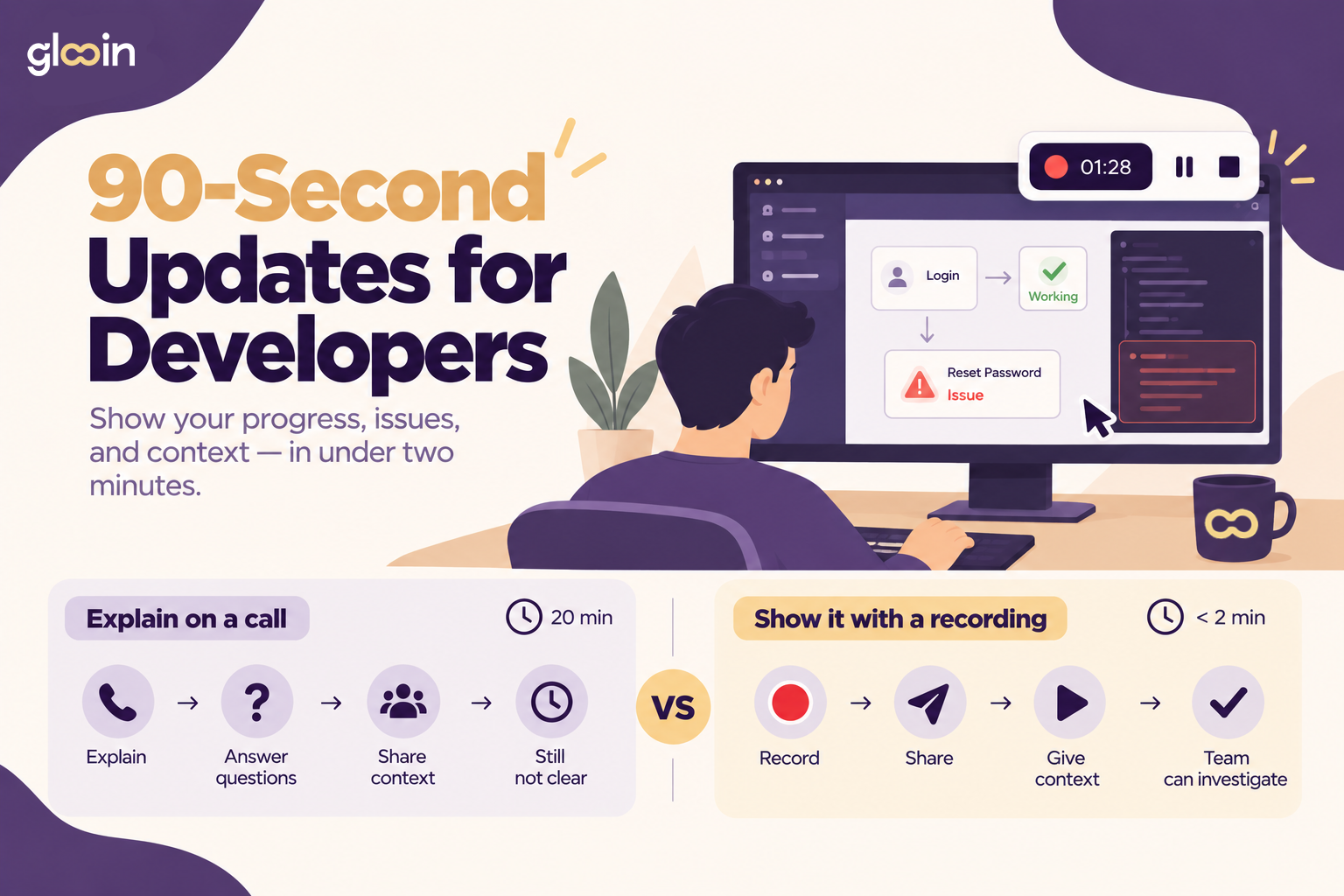
90-Second Updates for Developers
90-Second Updates for Marketing Teams
Marketing teams can use short recordings to share campaign progress.
For example:
“Here's the latest version of the campaign landing page. The copy has been updated, the tracking code is installed, and I'm now testing the mobile version.”
You can also record:
Campaign dashboards
Ad performance
Website changes
Content calendars
SEO updates
Social media designs
Competitor research
Landing page changes
Instead of sending screenshots with multiple explanations, one recording can bring everything together.
90-Second Updates for Managers
Managers can use short videos to communicate updates without scheduling another call.
For example, a manager could record:
“Here's where we are with this week's launch. The design is complete, development is almost finished, and we're waiting for the final QA review. The only current blocker is the payment integration.”
Team members can watch the update when they have time.
This is especially useful when the information doesn't require an immediate response.
90-Second Updates for Remote Teams
Remote work has changed how teams communicate.
When everyone is in the same office, it's easy to walk over to someone's desk and explain something.
Remote teams don't have that option.
The alternative can sometimes become:
Message → Reply → More questions → Call → Follow-up message
A screen recording can reduce that back-and-forth.
You can simply show the problem or update.
For distributed teams, this can also reduce the pressure to find a meeting time that works for everyone.
Someone can record their update in the morning.
Another teammate can watch it later.
A third teammate can respond when they start work.
Everyone gets the information without needing to be online at the same time.
Async Communication Doesn't Mean Less Communication
Some people hear “async communication” and think it means fewer conversations.
That's not the idea.
Async communication is about communicating without requiring everyone to be available at the same moment.
A screen recording is a good example.
You can still explain everything.
You can still ask questions.
You can still give feedback.
The difference is that the communication doesn't have to happen in real time.
This is one reason short screen recordings can work well alongside tools like Slack, project management platforms, email, and documentation.
Glooin has also explored this approach in The New Async Stack: Slack + Screen Recording + AI + Notion.
Replace the Status Meeting, Not the Conversation
There is an important distinction here.
The goal isn't:
“Never have meetings.”
The goal is:
“Don't have a meeting when a recording can communicate the information.”
Meetings still have an important role.
Teams need time to:
Make decisions
Brainstorm
Solve complicated problems
Discuss strategy
Resolve disagreements
Collaborate in real time
But routine updates don't always require those things.
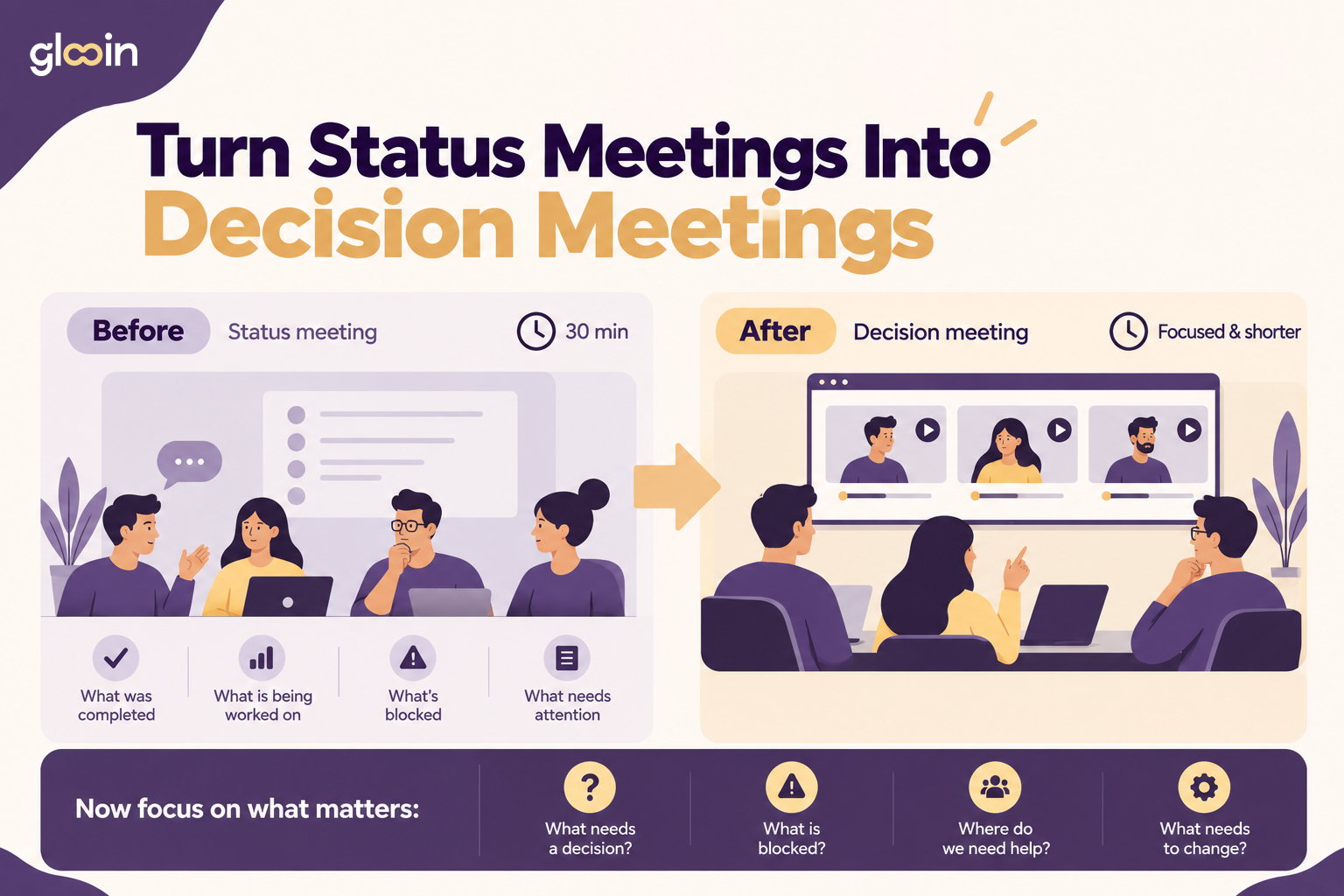
If everyone already knows what everyone else is doing, the meeting might not add much value.
A 90-second recording can provide the context, while the team's live time can be reserved for actual discussion.
Turn Status Meetings Into Decision Meetings
The 90-Second Rule
For routine updates, try creating a simple team rule:
If the update can be explained in 90 seconds, record it.
This doesn't mean every video must be exactly 90 seconds.
Some updates might take 30 seconds.
Others might take two or three minutes.
The point is to encourage people to keep routine communication focused.
Instead of writing a long explanation, show the work.
Instead of scheduling a call, record the update.
Instead of explaining a bug through multiple messages, demonstrate it.
What Makes a Good Work Update?
A good screen-recorded update should be:
Short
Get to the point quickly.
Visual
Show the actual work whenever possible.
Specific
Explain exactly what changed.
Actionable
Tell people what you need from them.
Easy to Watch
Avoid unnecessary introductions and long explanations.
For example:
Not ideal:
“Hey everyone, I just wanted to give a quick update about what we've been doing this week…”
Better:
“Here's the updated dashboard. I've completed the new analytics section, fixed the mobile layout, and I'm currently blocked by the API error shown here.”
The second version gives useful information immediately.
Why Screen Recordings Are More Contextual Than Screenshots
Screenshots are useful.
But a screenshot only captures one moment.
A screen recording can show the entire process.
For example, instead of sending a screenshot of an error message, you can show:
Open page → Click button → Enter information → Submit → Error appears
That context can make troubleshooting much easier.
The same applies to product demos, design feedback, tutorials, and onboarding.
A recording isn't just a picture of the problem.
It's a demonstration of the problem.
Glooin for More Than Status Updates
Although this article focuses on 90-second work updates, the same workflow can be used across the workday.
You can use Glooin to create:
Product Demos
Show customers or teammates how a product works.
Bug Reports
Record the exact steps that cause an issue.
Design Feedback
Walk through a design and explain what needs to change.
Tutorials
Show someone how to complete a task.
Customer Support
Explain a solution visually instead of writing a long response.
Employee Onboarding
Record processes that new employees can watch when they need them.
Project Handoffs
Explain the current state of a project before another person takes over.
Async Standups
Replace routine daily meetings with short updates.
A Better Way to Think About Workplace Communication
Modern teams have more communication tools than ever.
Email.
Slack.
Video meetings.
Project management tools.
Documents.
Chat.
But having more tools doesn't necessarily mean communication becomes easier.
The real question is:
Which format is right for the information?
Use text when the information is simple and searchable.
Use meetings when you need real-time discussion.
Use screen recordings when showing something is easier than explaining it.
That's where Glooin becomes useful.
It sits between written communication and live meetings.
You can communicate visually without requiring everyone to stop their work.
From “Can We Have a Quick Call?” to “Here's a Quick Video”
We've all received a message that starts with:
“Can we have a quick call?”
Sometimes that call really is necessary.
But sometimes the person simply wants to explain something that could be shown in a minute.
Instead of:
“Can we have a quick call?”
Try:
“Here's a quick video showing what I'm seeing.”
That's the idea behind the 90-second work update.
It doesn't eliminate communication.
It makes communication more flexible.
Start With One Update
The Future of Workplace Updates Is More Visual
Work is becoming increasingly distributed, fast-moving, and asynchronous.
Teams need ways to communicate that don't always depend on everyone being available at the same time.
Short screen recordings are one practical way to do that.
A 90-second video can communicate progress, provide context, demonstrate a problem, and tell someone exactly what needs to happen next.
And with Glooin, creating that update doesn't have to be complicated.
Record your work. Show the context. Share the update. Keep moving.
The next time someone asks, “What's the status?”, you may not need another meeting.
You may just need 90 seconds.
Try the 90-Second Work Update With Glooin
Glooin makes it simple to record your screen, explain what you're working on, and share it with your team.
Whether you're reporting a bug, reviewing a design, demonstrating a product, or sharing a daily update, a short recording can often communicate more than a long message.
Record less meetings. Show more work.
Read More From Glooin
Async Standups: Replacing Daily Meetings with 90-Second Screen Recordings
From Bug Reports to Product Demos: 10 Ways Teams Can Use Screen Recording at Work
AI Screen Recording in 2026: Auto-Editing, Filler-Word Removal & AI Voiceovers Explained
Follow Glooin
Get more screen-recording tips, async-work ideas, and updates from Glooin:
Instagram: Follow Glooin on Instagram
LinkedIn: Follow Glooin on LinkedIn