
How to Record Google Meet, Zoom & Teams Calls Without a Bot or Watermark (Free, with Glooin)
Learn how to record Google Meet, Zoom, and Microsoft Teams calls without a recording bot or distracting watermark. Discover how Glooin makes screen and audio recording simple, fast, and easy to share for meetings, demos, training, and team communication.
Table of contents
Recording online meetings can be useful for team updates, interviews, presentations, training sessions, client calls, and webinars. But many meeting-recording tools require you to invite a recording bot into the meeting, while some free screen recorders add watermarks or make sharing difficult.
There is a simpler approach.
With Glooin, you can record Google Meet, Zoom, and Microsoft Teams calls directly from your browser without adding a recording bot to the meeting. You can capture the meeting on your screen, include audio, and share the recording afterward.
Why Record Meetings Without a Bot?
Meeting bots can be useful, but they aren't always convenient.
A bot may appear as another participant, require additional permissions, or make clients and colleagues uncomfortable. In some situations, you simply want to record what is happening on your screen without adding another participant to the call.
A browser-based screen recorder gives you another option:
No recording bot joining the meeting
No complicated setup
No separate recording hardware
No need to download large recording software
Easy screen and audio capture
Simple sharing after the recording
That's where Glooin fits in.
How Glooin Records Online Meetings
Glooin is a Chrome-based screen recording tool designed for quick, simple recording.
Instead of joining your Google Meet, Zoom, or Teams call as a bot, Glooin records the content you choose from your browser or screen.
You can record:
Your browser tab
A specific application window
Your entire screen
Screen + webcam
Microphone audio
Meeting or system audio, where supported by your device and browser
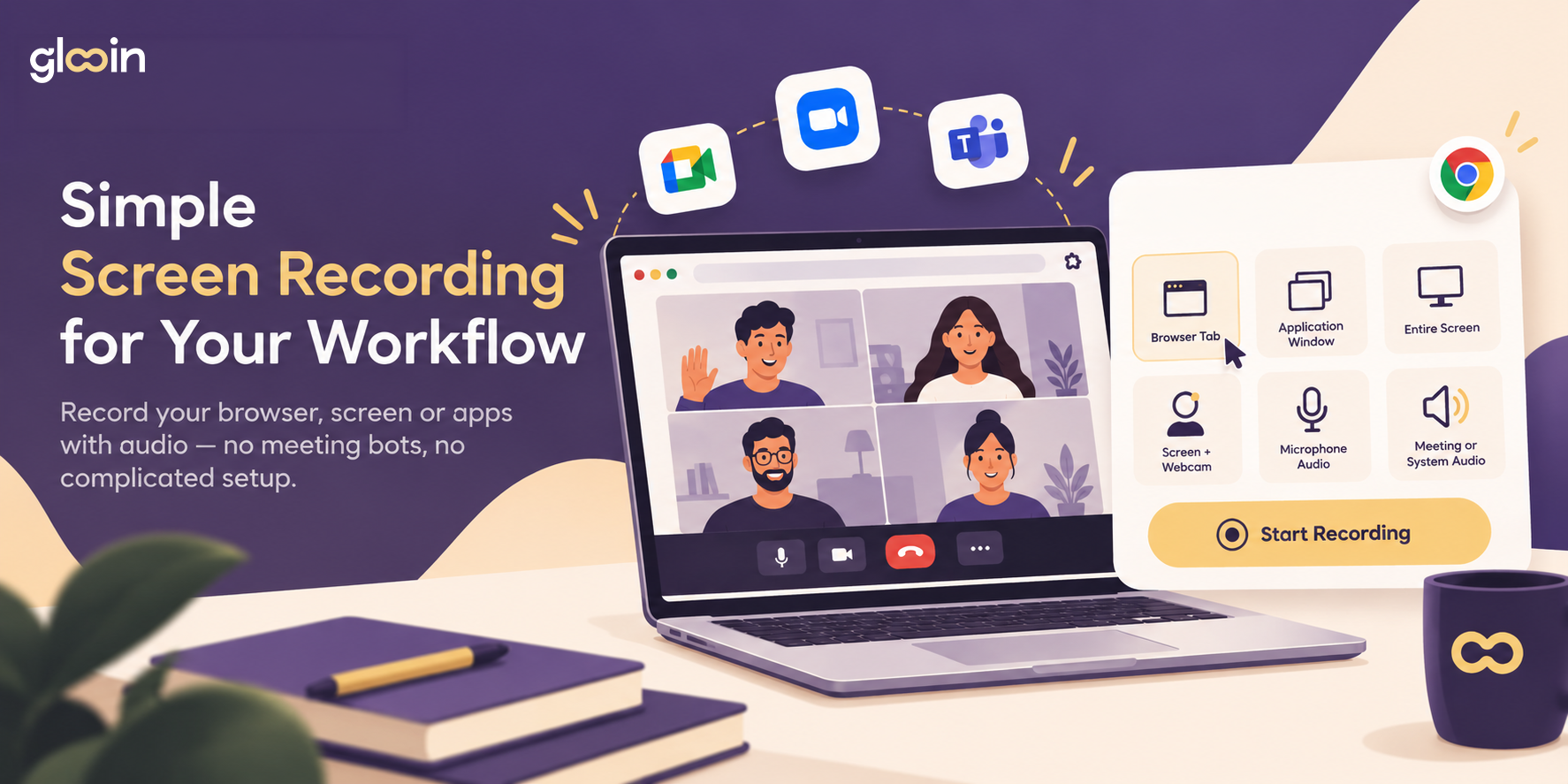
Open the meeting → Start Glooin → Choose what to record → Record → Share
There is no need to wait for a bot to join the meeting.
How to Record a Google Meet Call
Google Meet has its own recording feature, but availability depends on your Google Workspace edition, administrator settings, and meeting permissions. Google also notifies participants when its native recording starts.
If you need a simple screen-recording workflow, you can use Glooin.
Steps:
1. Open Google Meet in Chrome
Join your meeting normally.
2. Open Glooin
Start the Glooin Chrome extension.
3. Select your recording source
Choose the browser tab, window, or screen you want to capture.
4. Start recording
Glooin captures the selected meeting view along with the audio options you choose.
5. Stop and share
When the meeting ends, stop the recording and share it with your team, client, or colleagues.
How to Record a Zoom Call Without a Recording Bot
Zoom's built-in recording options depend on the meeting setup and permissions. If you're looking for a way to capture the meeting without adding a recording bot, screen recording is another approach.
With Glooin, you can record the Zoom window or browser content directly.
Simple workflow:
Join the Zoom meeting.
Open Glooin.
Select the Zoom window or your screen.
Choose your audio options.
Start recording.
Stop when the meeting is finished.
Share the recording.
This means the recording process doesn't require a bot to enter the Zoom meeting.
You can also read our detailed guide: How to Record a Zoom Meeting (Even If You're Not the Host).
How to Record a Microsoft Teams Call
Microsoft Teams recording can depend on organizational settings, licenses, and permissions. For users who simply want to capture what is happening on their screen, Glooin provides a browser-based alternative.
Open Teams in Chrome, start Glooin, select the content you want to capture, and begin recording.
Glooin can be useful for:
Team meetings
Product discussions
Client calls
Training sessions
Presentations
Software demonstrations
Internal updates
For a detailed walkthrough, check our guide: How to Record a Microsoft Teams Meeting.
No Watermark on Your Recording
One of the biggest problems with some free recording tools is the watermark.
A watermark can make a recording look less professional, especially when you're creating:
Client presentations
Product demonstrations
Tutorials
Training videos
Sales walkthroughs
Internal documentation
Glooin is designed to keep the recording experience clean, so your screen recording doesn't need a distracting third-party watermark over the content.
Why Use Glooin Instead of a Meeting Bot?
A meeting bot and a screen recorder work differently.
A bot joins the meeting as a participant and records from inside the meeting platform. Glooin takes a different approach by capturing the content from your browser or screen.
This can make Glooin useful when you want:
A private recording workflow
You don't need to add another participant just to capture your screen.
A faster setup
Open Glooin and start recording instead of waiting for a bot to join.
Simple sharing
After recording, you can share the recording without managing a complicated video workflow.
More than meetings
Glooin isn't limited to Google Meet, Zoom, or Teams. You can also use it for tutorials, product demos, bug reports, onboarding, and async communication.
More Than Just Meeting Recording
The real advantage of a screen recorder is that you can use the same tool outside meetings.
For example, instead of scheduling a 30-minute call to explain a problem, you can record your screen and show exactly what is happening.
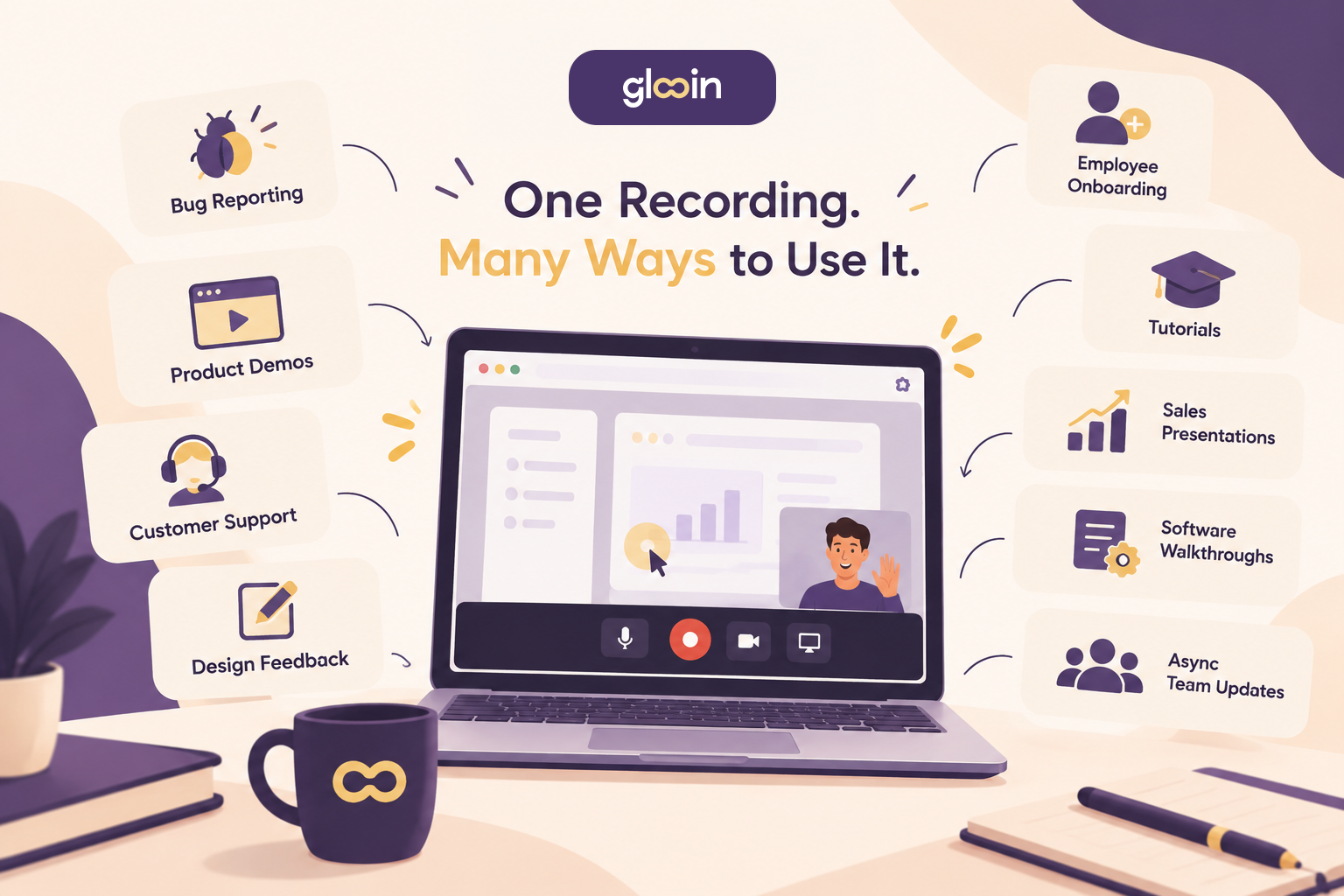
For more ideas, read From Bug Reports to Product Demos: 10 Ways Teams Can Use Screen Recording at Work.
Record Once. Share Anywhere.
A meeting recording doesn't have to stay inside the meeting platform.
You can use a recording for:
Team communication - Send an update without scheduling another call.
Client communication - Explain a product, feature, or issue visually.
Training - Give new employees a recording they can watch later.
Documentation - Turn a live demonstration into reusable knowledge.
Content creation - Repurpose recordings into tutorials, social clips, or educational content.
Glooin makes this workflow easier by combining recording and sharing in one simple experience.
A Simpler Way to Record Online Calls
Google Meet, Zoom, and Microsoft Teams are excellent communication platforms, but their native recording features aren't always available to everyone or suitable for every situation.
If you don't want to add a recording bot to your meeting and you want a clean recording without a watermark, screen recording can be a practical alternative.
With Glooin, you can open your meeting, record your screen and audio, and share the result without turning your meeting into a complicated production.
Record what you see. Explain what matters. Share it when you're ready.
Explore More from Glooin
Follow Glooin for more screen-recording tips, tutorials, and productivity ideas on Instagram and LinkedIn.